To turn on two-factor authentication (2FA) for Fortnite, sign in to your Epic Games account at fortnite.com/2fa, open Password & Security, choose an authenticator app, text messages or email under Two-Factor Authentication, and enter the code you receive. It takes two minutes, adds the Boogie Down emote to your locker, and unlocks gifting and tournaments.
2FA lives on your Epic Games account, not in the game, so it protects your skins and V-Bucks on every platform you play on. Here is each step, which method to pick, and what to do when the emote or the codes do not show up.
Step by step
- Open
fortnite.com/2fain a browser and sign in to the Epic Games account you play Fortnite on. If you play on a console, pick your console's sign-in option on that page: it opens the Epic account linked to your console. - Go to Password & Security in your account settings.
- Under Two-Factor Authentication, pick a method: an authenticator app, text messages (SMS) or email.
- Confirm with the code Epic sends or the app shows. From then on, a new device asks for a code when you sign in.
- Restart Fortnite: the Boogie Down emote appears in your locker.
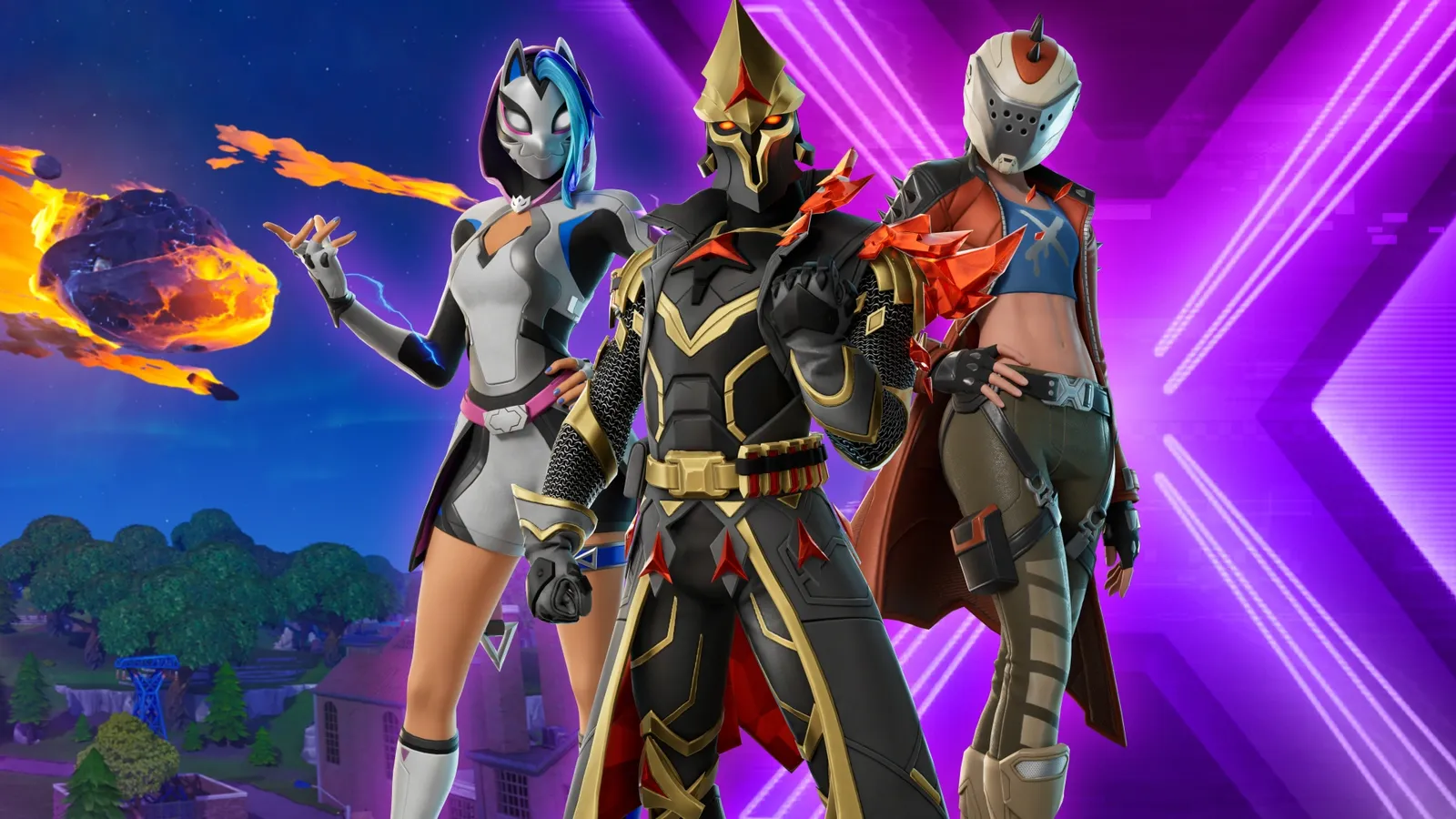
Names, descriptions and pictures: Epic Games, read from the game’s files by Fortnite-API.com.
You cannot turn on 2FA from the game's menus on a console. If your console account has never been linked to an Epic account, signing in with it on Epic's website creates or finds that account; then follow the same steps.
Which method to choose
| Method | How you get the code | Best for |
|---|---|---|
| Authenticator app | A code that changes every 30 seconds in an app on your phone | The safest: no message to intercept, works without signal |
| Text message (SMS) | A code sent to your phone number | Easy, but tied to your phone line |
| A code sent to your account's email address | The simplest, as safe as your email account |
Whatever you pick, protect the email address of your Epic account with its own 2FA too: whoever controls that inbox can reset your password.